

Are you facing the ‘WordPress database error disk full’ issue?
This error message appears when your web hosting server’s storage space is nearly complete, significantly impacting your site’s performance.
What Leads to the ‘WordPress Database Error Disk Full’ Issue?
WordPress stores all website content in a database, including posts, pages, images, and user information. When the database reaches its storage limit, it triggers the ‘WordPress Database Error Disk Full’ message.
This standard error can prevent publishing new content, logging in, and displaying media files correctly while slowing down your site.
Here are some tips to fix the WordPress Database Error Disk Full issue.
1. Upgrade Your Hosting Plan
The most common reason for the ‘WordPress database error disk full’ error is limited space on your hosting plan.
To resolve this error, choose the Best WordPress hosting that allows you to upgrade your plan as your website grows.
Upgrading to a more storage plan can effectively resolve this issue, ensuring your website runs smoothly and efficiently as it grows.
2. Remove Unnecessary Files from the Database
If upgrading your hosting plan doesn’t resolve the error, you can remove unnecessary files from the database, such as old backups, spam comments, logs, or unused installers.
For beginners, using a plugin like WP-Optimize can make this process simple. This plugin helps remove unwanted data like post revisions, spam comments, trash, transient options, and orphaned metadata from your WordPress dashboard.
After activating the plugin, navigate to the WP-Optimize > Database. You will see a list of operations the plugin can perform on your database.
Carefully review these operations and uncheck any items you do not want to delete.
Once you have selected, click the ‘Run all selected optimization’ button to remove unnecessary files easily.

Using PHPMyAdmin
If you prefer to remove database files manually, you’ll need to access your hosting account control panel.
The steps below are a general guide, as the process is similar for most hosting providers.
1. Log in to your hosting control panel.
2. Navigate to Database > PHPMyAdmin.
4. Locate your database name and click on it. If you’re unsure of the name, you can find it under your hosting control panel’s “Databases” section.
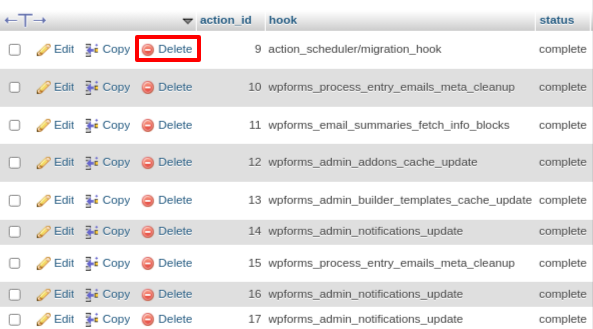
5. Delete unnecessary files that are taking up space by clicking the “Delete” link next to them.
6. Repeat this process for all relevant tables until you free up enough storage space.
Database Optimization Tools:
The essential tools hosting providers provide through their control panels are necessary to maintain WordPress websites’ peak performance.
These tools automate tasks for efficient database maintenance.
- Fragmentation Removal:
Over time, data insertion, deletion, and updating can fragment databases. This fragmentation results in scattered data blocks, slowing down database queries.
Optimization tools can identify and eliminate these fragmented data blocks, reorganizing the database for quicker access and improved efficiency.
- Table Optimization:
Database optimization tools also focus on optimizing tables within the database. This involves reorganizing the physical storage of table data to reduce disk space usage and improve query speed.
It can also involve defragmenting tables to eliminate wasted space and reduce the overhead required to maintain the database.
- Database Cleanup:
Unused data, temporary tables, and expired transients can accumulate over time, cluttering the database.
Optimization tools can identify and clean up these unnecessary items, freeing up storage space and enhancing database performance.
More info:
Use Content Delivery Network
A Content Delivery Network (CDN) is a global server network that collaborates to efficiently deliver content to users.
How a CDN can help fix the “WordPress Database Error Disk Full” error, especially for WooCommerce hosting:
Reduced Server Load: Offloading media files to a CDN reduces the data stored and served from your primary server. This reduction in data load can free up substantial disk space, alleviating the disk full error.
This is particularly beneficial for e-commerce, where product images and media can quickly consume a lot of storage.
Improved Load Times:
CDNs distribute your media files across multiple servers worldwide. When a user requests a file, it is delivered from the nearest CDN server, reducing latency and improving load times.
This enhances the user experience and reduces strain on the primary server. This is crucial for e-commerce sites, where fast load times impact sales.
Improve Security:
CDNs provide extra security features, like DDoS protection, SSL certificates, and automated updates. These features protect your website from attacks, reduce downtime, and ensure consistent access to your content.
Enhanced security is crucial for WooCommerce hosting, where safeguarding customer data is a top priority.
3. Delete Unused WordPress Plugins and Themes
Deleting unnecessary database files should resolve the ‘WordPress database error disk full’ error. However, to be thorough, we recommend removing WordPress plugins and themes you no longer use. You can install WordPress plugins again according to your requirements. Read this detailed article if you need a step-by-step guide on installing a WordPress plugin.
To delete a plugin, go to the Plugins > Installed Plugins page in your WordPress dashboard and click the ‘Delete’ link next to the plugins you want to remove.

Next, go to Appearance > Themes to remove any themes you are not currently using on your website.
For example, you can delete WordPress themes like Twenty Twenty-Two. To do this, click on the ‘Theme Details’ button, then click the ‘Delete’ link in the prompt that appears.

Additionally, consider deleting large media files and optimizing images before adding them to your website. Use formats like PNG and JPEG and employ compression plugins to reduce the size of media files.
Additional Tips:
To prevent this issue from recurring, follow the below strategies:
- Limit the number of post revisions and media file sizes.
- Regularly monitor your disk space and clean up unnecessary files.
Conclusion
To resolve the “WordPress Database Error Disk Full” error, transparent unnecessary files, optimize the database, and implement regular maintenance practices like automatic optimization and cleanup, limiting post revisions and media file sizes, and using a CDN for media files. Monitor disk space to prevent recurrence and ensure smooth WordPress site operation.
